AI Educational Video Generator: Turn Any Lesson into an Animated Video
Type the topic, the grade and the length, or paste your lesson notes. The AI writes a clear lesson script for free, then draws every scene as a cartoon in one style, keeps the same teacher character throughout, adds a narrator in your students’ language and hands you a finished video for class, homework or YouTube.
- Lesson script written for free
- Same teacher character in every scene
- Narrated in 17 languages
- Captions burned in for the classroom
Vidéo en un clic avec ToonBee 1.0. Sans étapes : il découpe les plans, ajoute la narration et la musique à toute la vidéo en une seule fois, à la durée voulue.
Le contenu sexuellement explicite (NSFW) est strictement interdit.
What is an AI educational video generator?
An AI educational video generator turns a lesson into a short animated video: you give it the topic, who is learning and how long the video should be, and it writes the script, draws the scenes and records the narration. There is nothing to storyboard, animate or voice yourself.
Students follow a concept more easily when they see it. ToonBee AI draws what the narrator is explaining in every scene, in one cartoon style, with the same teacher or mascot character from the first scene to the last, so a lesson looks like an episode of a learning show rather than slides with a voice over them.
How it turns a lesson into a video
- You type the topic, the grade and the length, or paste your lesson notes or plan as text.
- The AI writes the lesson script and splits it into scenes. You read and edit every line for free.
- It designs the teacher character, draws each scene in the style you picked and records a narrator.
- You review the scenes, choose which ones move, turn on captions, add music and download the video.
Animated lesson examples
Short narrated lessons on science, history and everyday things, each drawn in one look from start to finish. Pick a look your class likes, then the topic.
Whiteboard Doodle
Pastel Flat 2D
Colorful 3D
Hand Drawn
Stickman Cartoon
2D Illustration
Watercolor
Claymation
Educational videos teachers make with it
Say who is learning and what they should be able to do at the end. The script is written for that age and that goal.
Science lessons
The water cycle, why plants need light, how magnets work. Each step drawn as a scene, with a question to open and a recap to close.
History and social studies
A short story of an event or a person, told in order, with the same characters in every scene so students can follow who is who.
Social-emotional learning
Sharing, saying stop, handling a big feeling. A short story with a character students meet again in the next lesson.
Language and vocabulary
A story that uses this week’s words, narrated in the language being taught, with captions on so students read along.
Rules, routines and safety
Fire drills, hand washing, how the class library works. Explained the same way for every class, every year.
Flipped classroom and homework
A 3-minute video to watch before class, so class time goes to practice. Make one per lesson, in 16:9 for the projector or 9:16 for phones.
Cartoon styles for the classroom
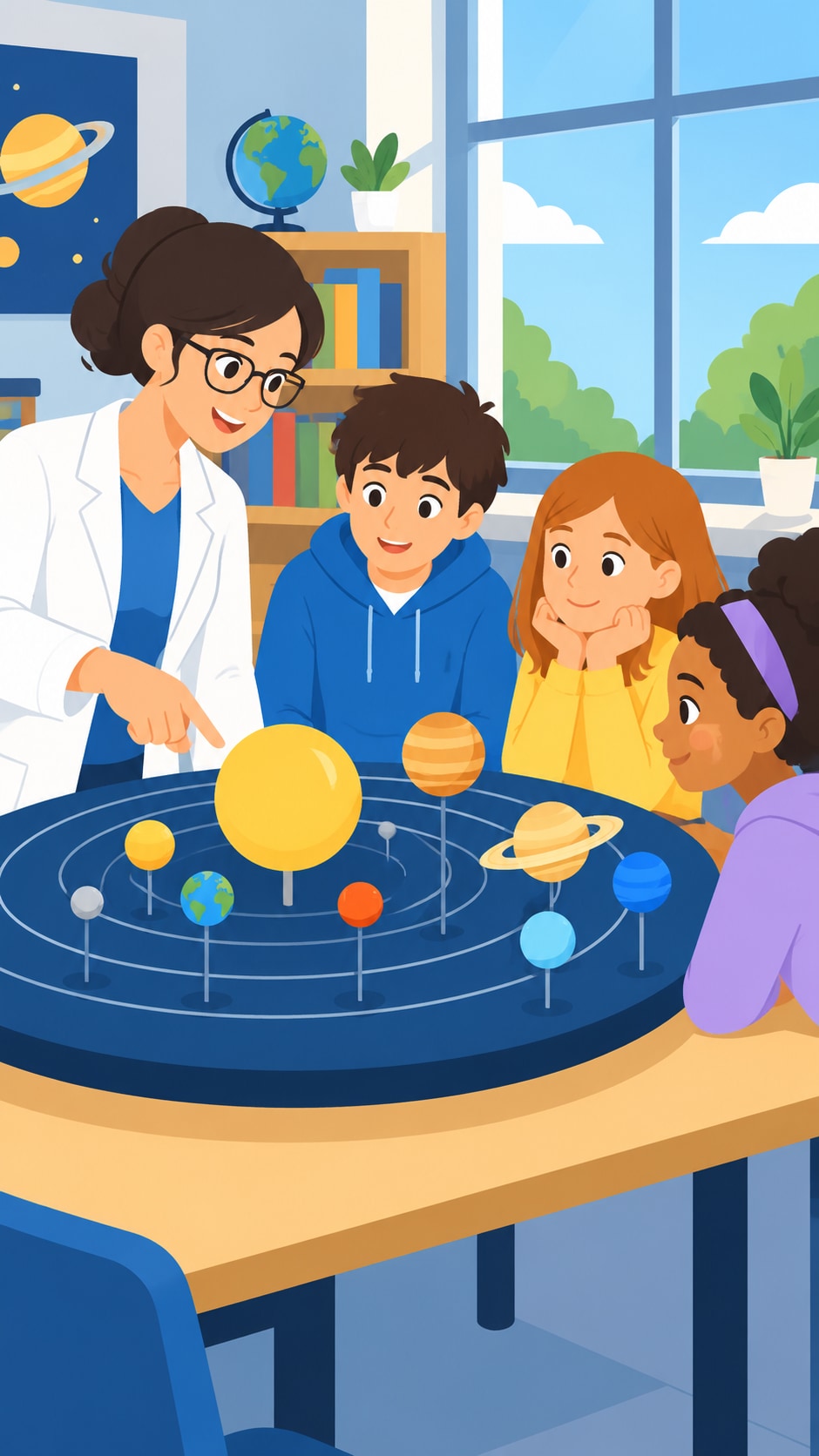
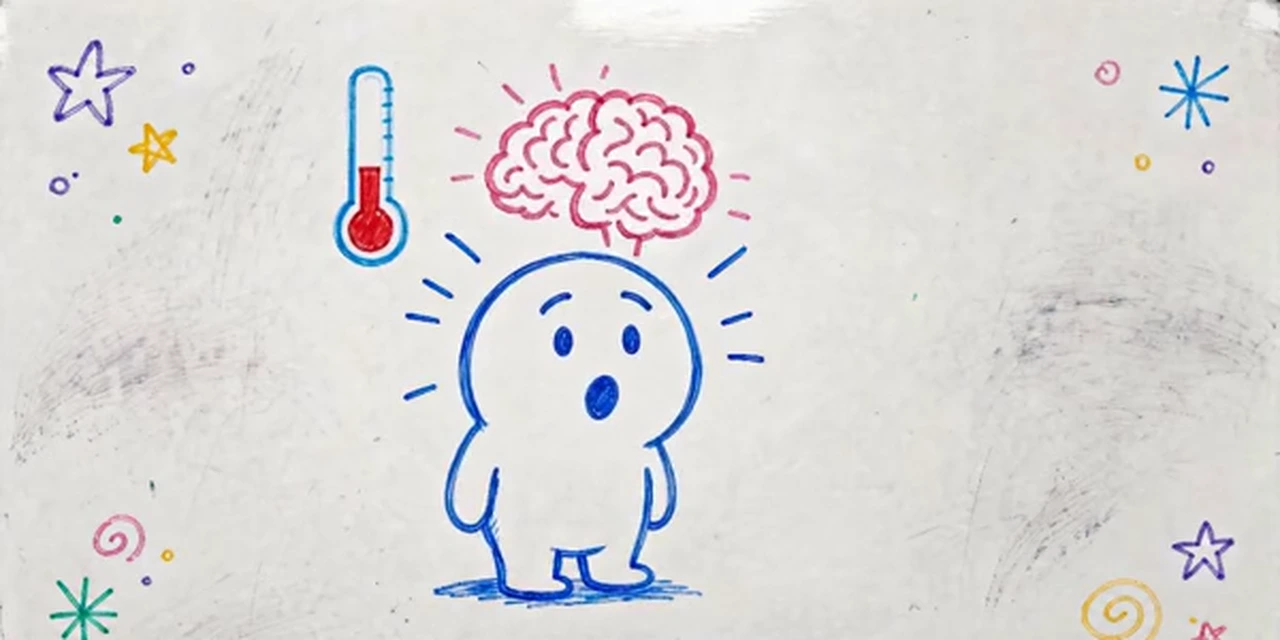
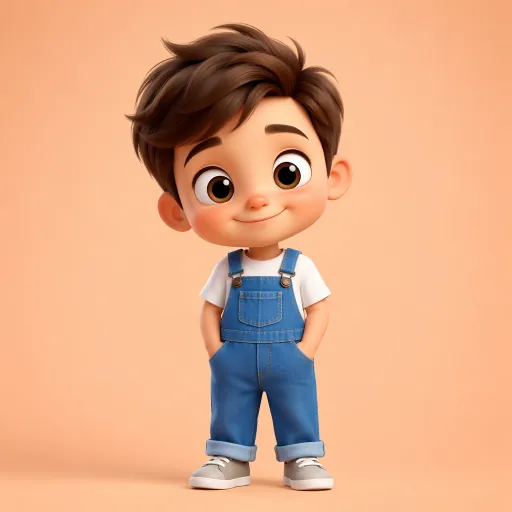
The generator opens on Flat Vector: clean shapes that keep attention on the idea. 3D Character, Children’s Book Illustration, Clay Toy and Whiteboard Doodle suit younger classes, and 66 looks are one tap away in all. Every scene and character is drawn in the one you pick.
 Vectoriel plat
 Dessin au tableau blanc
 Personnage 3D
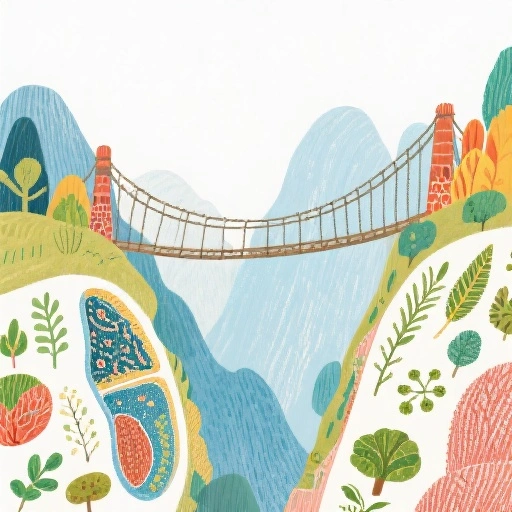 Illustration jeunesse
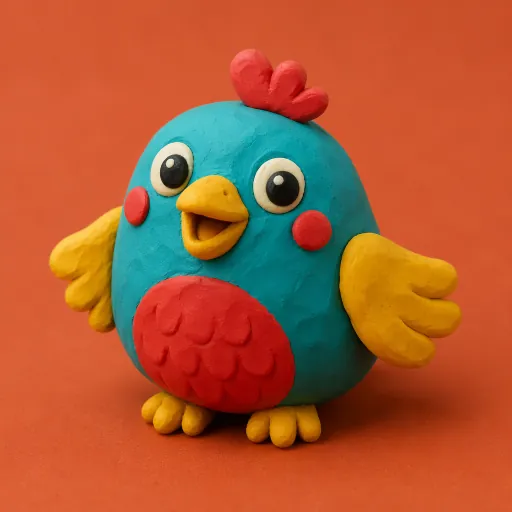 Figurine en pâte à modeler
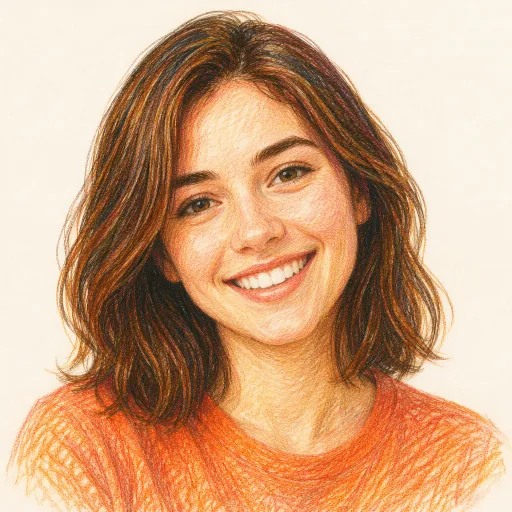 Crayons de couleur
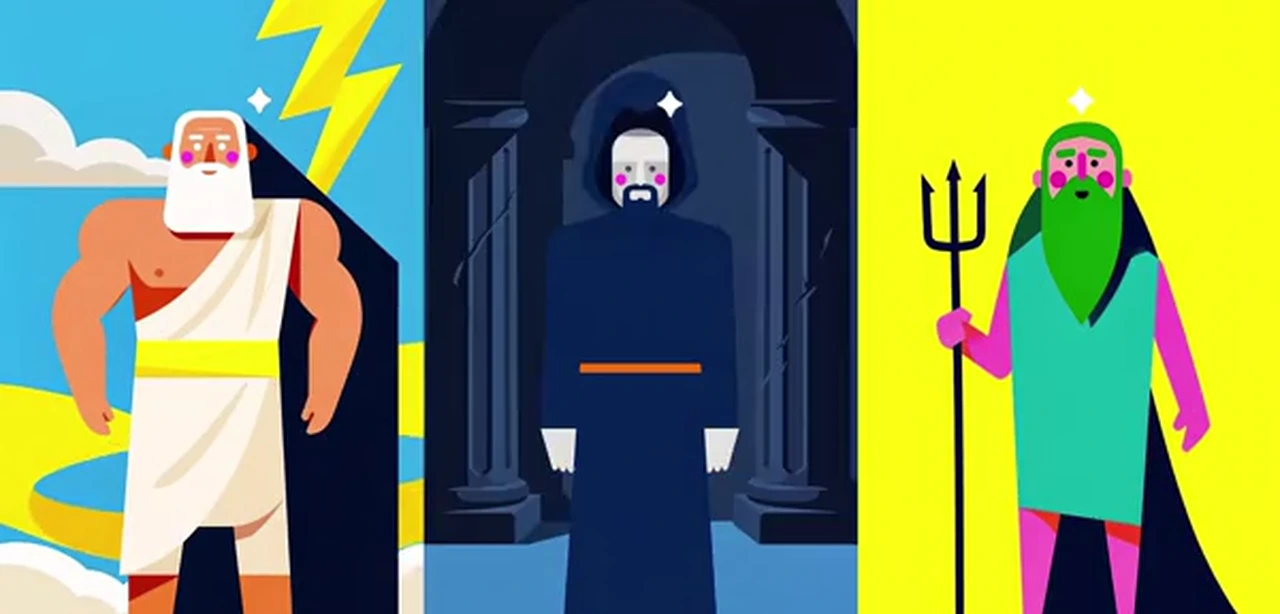 Affiche vectorielle
 Minimalisme
Explaining a product rather than a lesson? AI explainer video maker · Tutorial video maker
A simple lesson video script template
Short lesson videos that hold attention tend to follow the same five beats. Paste a script in this shape, or ask the AI to write one in it. Around 130 narrated words make a minute.
- 1
Hook question · 0–10 s
“Why does a plant go floppy when you forget to water it?” One question students want answered.
- 2
Learning goal · 10–20 s
“Today you will learn the three jobs water does inside a plant.” Say what they will know by the end.
- 3
Explain, one idea per scene · 20–90 s
Roots drink, stems carry, leaves use. One idea, one picture, one simple example each.
- 4
Check for understanding · 90–105 s
“What do you think happens to a plant with no water for a week? Pause and tell a partner.”
- 5
Recap · 105–120 s
Three short sentences that repeat the goal. The same teacher character waves goodbye.
How to make an educational video with AI
- 1
Describe the lesson
“A 2-minute lesson on the water cycle for grade 3” is enough. Or switch to Paste a script and paste your lesson notes as text.
- 2
Read the script, for free
The AI writes it in seconds at no cost. Simplify a word, add an example from your class, change the closing question.
- 3
Pick a style and a teacher character
Choose Flat Vector, 3D Character or another look. Let the AI design a teacher character, or attach up to 5 pictures of your own, such as your school mascot, and write @ and its name in the script.
- 4
Narrator, captions and download
Pick a narrator in one of 17 languages, turn on captions, add music, look over every scene, choose which ones move and download the lesson.
Made for lessons, not for ads
Pictures of the idea
Every scene shows what the narrator is explaining at that moment, so students see the concept instead of a face talking about it.
One teacher character all year
Up to 3 characters are designed once and drawn the same in every scene. Attach up to 5 pictures of your own, such as a mascot, and reuse them in every lesson so the series feels like one show.
Your students’ language
Narration in 17 languages, including English, Spanish, French, Arabic, Hindi and Portuguese. Write the script in that language and pick a narrator for it.
Captions to read along
Burn captions into the video in one of nine styles, so students read along and the video works with the sound off.
Short or long, wide or tall
From 15 seconds to 15 minutes, in 16:9 for the projector and YouTube or 9:16 for phones. No watermark.
Free to draft
Writing and rewriting lesson scripts is free, so you can plan a whole unit before spending anything on pictures.
Is there a free AI educational video generator?
Writing the lesson script is free. Make a free account and write and rewrite as many lesson scripts as you like.
Pictures, narration and animation use credits, bought with a plan or a credit pack. A one-minute lesson is about 232 credits with still scenes and a narrator, or about 2,512 with every scene animated (60 seconds of narration).
Plans start at $39 a month for 5,000 credits, about 21 minutes of illustrated, narrated lessons. Each step shows its cost before you confirm, and failed animations refund their credits automatically.
Good to know before you start
- Scenes are pictures without written words: labels, equations, diagrams with text and charts are not drawn in. Turn on captions to put the narration on screen, and add worked equations in a slide or an editor.
- Start from a topic or pasted text. PDFs, slides and web pages cannot be uploaded yet; copy in the part of the lesson you want taught.
- A video keeps up to 3 AI-designed characters and up to 5 of your own pictures fixed across its scenes.
- One narrator tells the whole lesson. There is no talking avatar, lip sync or voice cloning.
AI educational video FAQ
Can AI make educational videos?
Yes. Give ToonBee AI a topic, the age of the learners and a length, or paste your lesson notes, and it writes the lesson script, draws each scene as a cartoon in one style, narrates it and puts it together as one video.
Is there a free AI educational video generator?
Writing and editing lesson scripts is free with a free account. Turning a script into pictures, narration and video uses paid credits, and each step shows its cost before you confirm.
How long should an educational video be?
Shorter is usually better: a study of online courses found students stopped watching after about six minutes, so two to five minutes per idea is a good target. ToonBee AI makes videos from 15 seconds to 15 minutes.
Can I turn my lesson plan into a video?
Yes, as text. Switch the story box to Paste a script and paste the part of your plan you want taught; the generator turns your words into scenes and narration. PDF and slide uploads are not supported yet.
Can the video be in Arabic, Spanish or another language?
Yes. Narration is available in 17 languages. Write the script in the language your students learn in and pick a narrator for it, then make the same lesson again for another class.
Can I use the same teacher character in every lesson?
Within one video, up to 3 characters are designed once and kept the same in every scene. Across lessons, attach the same picture each time (up to 5 per video), such as your mascot or a character you designed, and write @ and its name in the script.
Can it show text, equations or labelled diagrams?
Captions, yes: the narration can be burned into the video. Equations, labels and charts are not drawn into the scenes today, so show worked examples on a slide or add them in an editor.
How much does an animated lesson cost?
A one-minute lesson with still illustrated scenes and a narrator is about 232 credits; the script is free, and failed animations are refunded automatically.
Can I share the videos with students or post them on YouTube?
Yes. Videos made with credits have no watermark and can be shown in class, shared in your learning platform, used in courses and posted on YouTube. Follow each platform’s rules for AI-generated content.
Your next lesson, animated
Tell the generator what you are teaching and who is learning. The script is free, and the cartoon is one step away.
Write a lesson script for freeOutils associés
D’autres pages qui ouvrent le même studio, préparé pour un autre type de vidéo.
- Générateur d’histoires pour enfants IAÉcrivez une histoire pour enfants et faites-en une vidéo.
- Script en vidéo avec l’IACollez un script terminé et récupérez une vidéo animée.
- Vidéos d’histoires IAN’importe quelle histoire, dans le style graphique de votre choix.
- Dessin animé IATransformez une idée ou un script en dessin animé avec voix off.
- Animation 3D IADes dessins animés 3D style Pixar à partir d’une histoire ou d’un script.
- Générateur de vidéos bibliques par IADes récits bibliques racontés en vidéos animées.